Manage Leads
View and manage all your leads in one place. You can filter leads, update status, assign to employee, send quotation, and track notes and follow-ups.
Lead Management
The Leads screen is the central place where all customer inquiries and sales opportunities are managed.
Every lead received from website forms, IndiaMART, manual entry, or other sources will appear in this screen.
From here, you can assign leads, update lead status, create quotations, add notes, schedule follow-ups, and track customer progress.
Leads Screen
This screen displays all leads available in your company. Each row represents one customer inquiry.
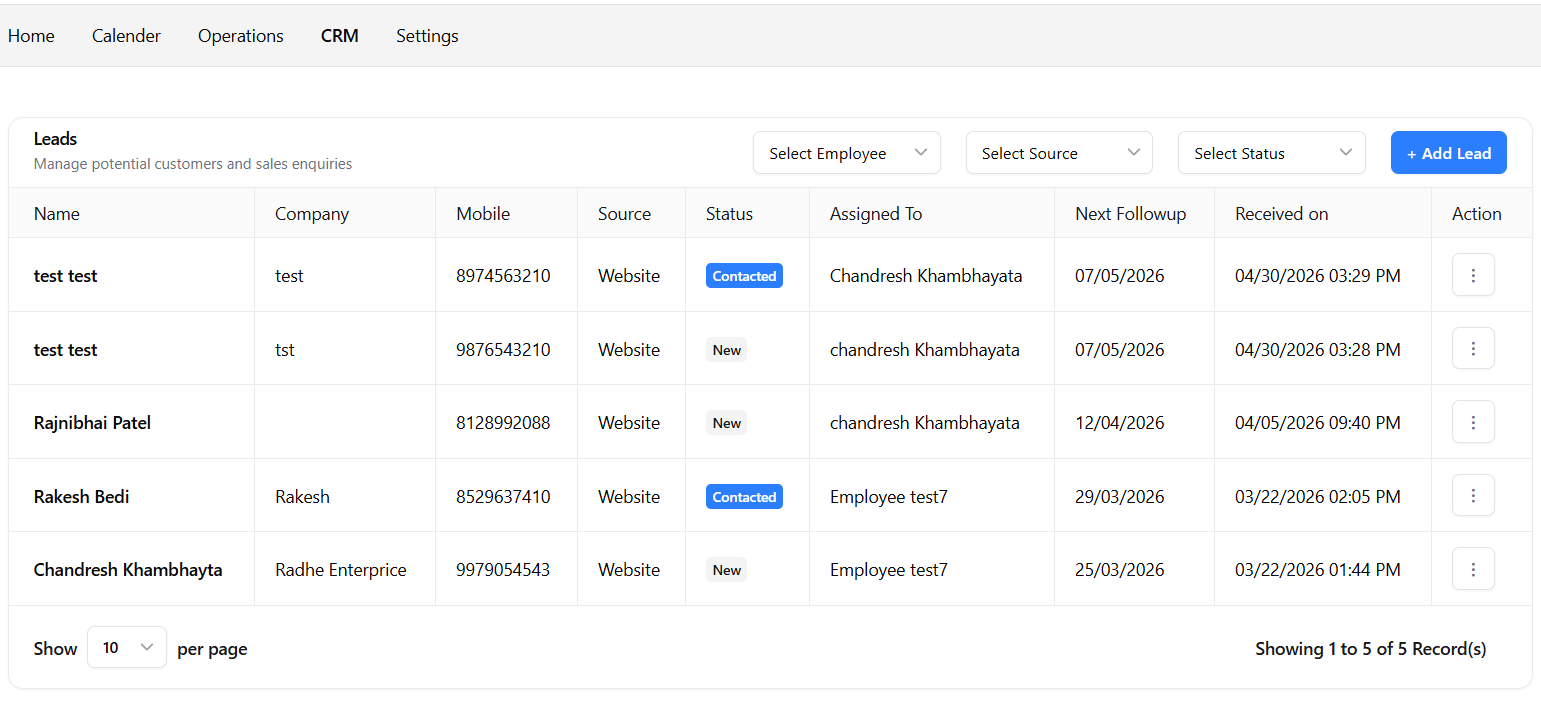
Filters
Filters help you quickly find specific leads without searching through the entire list.
-
Employee
Shows leads assigned to a specific employee.Useful for team leaders and managers who want to review work assigned to a particular employee. -
Source
Shows leads received from a selected source.Useful for measuring performance of lead sources such as IndiaMART, Website, Facebook, WhatsApp, or manual entries. -
Status
Shows leads with a specific status.Useful for finding leads that need attention, follow-up, quotation, or closure.
Pagination
When there are many leads, records are divided into multiple pages to improve performance and readability.
- Click on a page number to open a specific page.
- Use Next to move forward.
- Use Previous to move backward.
- You can also change the number of records shown per page.
Lead Actions
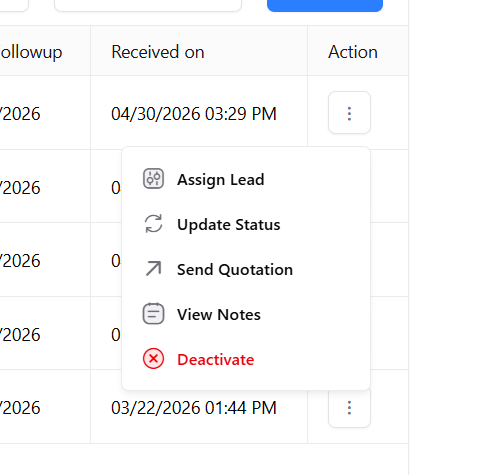
Click on the three dots (⋮) button to open additional actions available for the selected lead.
-
Assign Lead
Assign the lead to another employee or reassign it when required.Useful when leads need to be distributed between sales team members. -
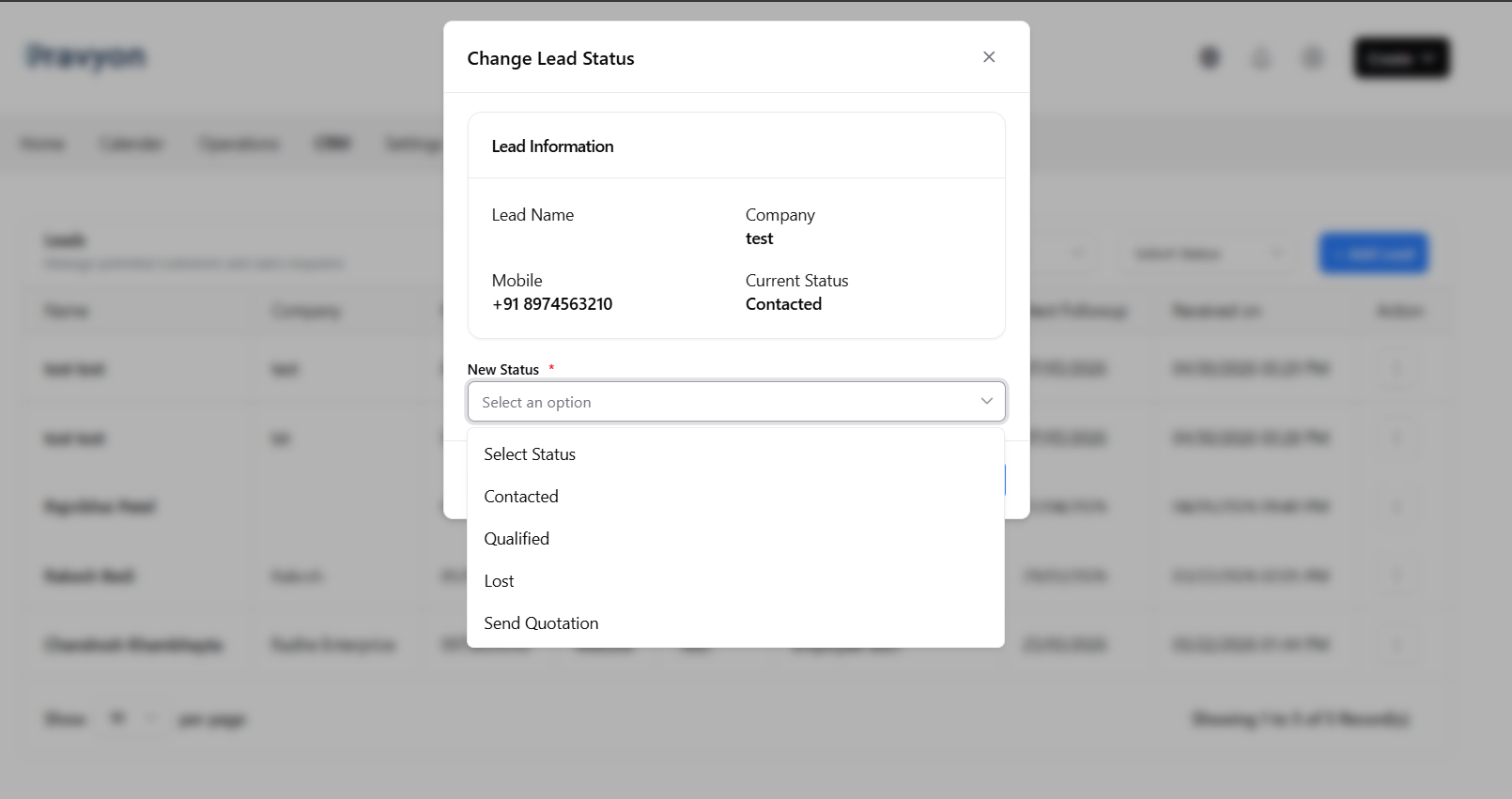
Update Status
Update the current stage of the lead.Available Status:- Contacted - Customer has been contacted.
- Qualified - Customer is interested and matches your requirements.
- Lost - Opportunity is no longer available.
- Send Quotation - Customer is ready to receive pricing.
Keeping statuses updated helps management track sales progress accurately. -
Send Quotation
Creates a draft quotation using available lead information.This saves time by reducing manual data entry and automatically redirects you to the quotation screen. -
View Notes
Opens the notes panel for the selected lead.Notes help team members share updates, customer requirements, reminders, and follow-up activities. -
Deactivate
Removes the lead from the active lead list.Use this option for duplicate entries, test leads, or leads created by mistake.
Update Lead Status
Updating lead status helps everyone understand the current progress of the customer.
Notes and Follow-Ups
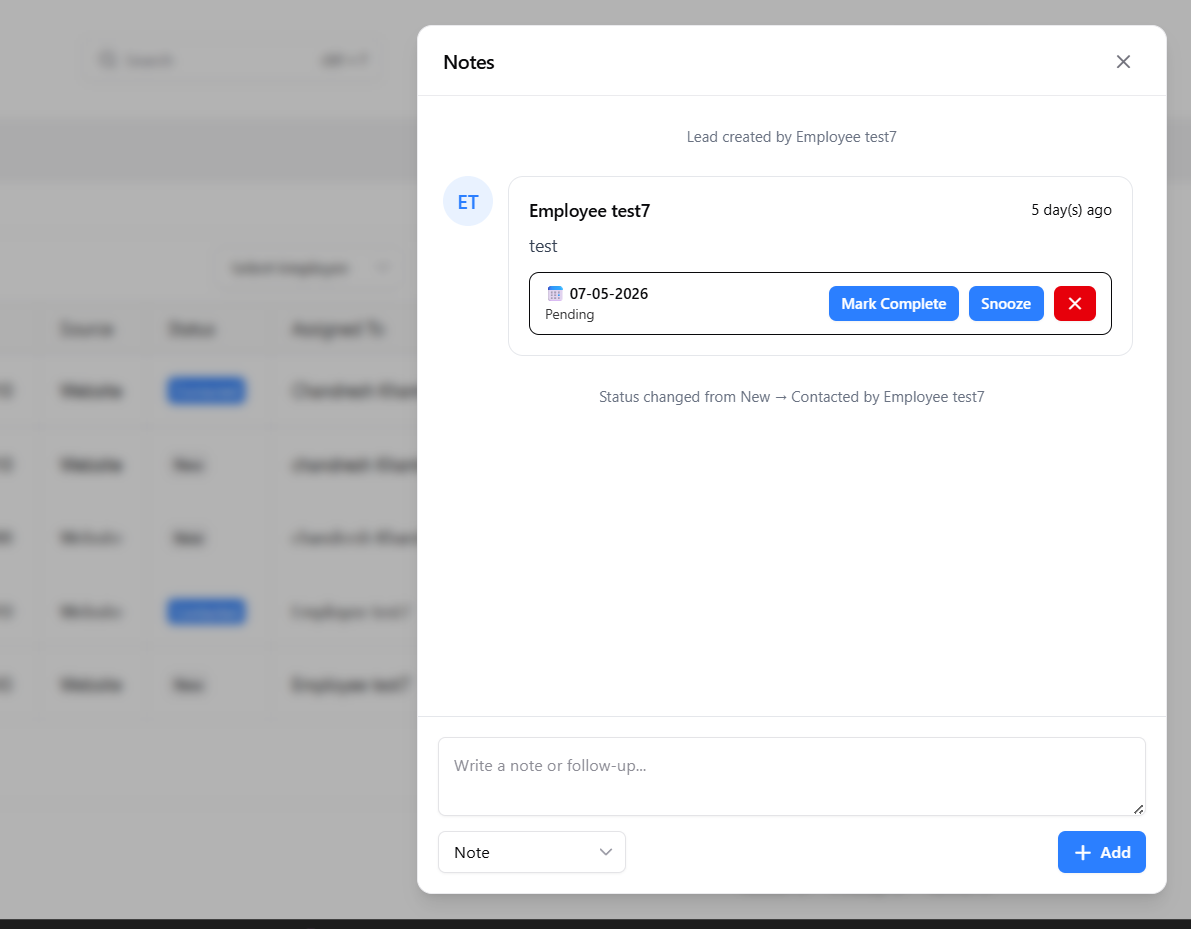
Notes help maintain a complete history of communication with the customer.
- Add discussion notes.
- Record customer requirements.
- Create follow-up reminders.
- Schedule future actions.
- Share updates with other team members.
- Tag employees to get their attention on important matters.
Why Use Lead Management?
- ✅ Keep all customer inquiries in one place.
- ✅ Track lead progress easily.
- ✅ Never miss follow-ups.
- ✅ Improve team collaboration.
- ✅ Generate quotations quickly.
- ✅ Increase chances of converting leads into customers.
Related Documentation
Leave Management
Learn how to apply leave, track leave requests, review leave details, and manage your leave history using the Leave module.
WhatsApp Business Integration
Connect your WhatsApp Business account with Pravyon to send quotations, invoices, notifications, and customer updates directly from CRM.
IndiaMART Integration
Connect your IndiaMART account with Pravyon to automatically import inquiries and manage leads inside CRM.
Lead Notes and User Tagging
Add notes, reminders, and tag employees in lead notes. Tagged employees will receive dashboard and WhatsApp notifications.