Enable System Notifications
Learn how to enable browser notifications to receive real-time updates even when not using the CRM.
What are System Notifications?
System Notifications help you stay updated with important activities happening inside Pravyon CRM.
Once enabled, Pravyon can send notifications directly to your computer or laptop, even when you are not actively using the CRM screen.
For example, if a new lead is assigned to you, a follow-up reminder is due, a quotation is created, or someone mentions you in a note, you will immediately receive a notification on your device.
This helps your team respond faster, avoid missing important updates, and stay connected with daily work activities.
Why Should You Enable Notifications?
- Get instant updates when new leads are assigned.
- Receive follow-up reminders on time.
- Know immediately when lead status changes.
- Get notified when someone tags you in notes.
- Stay updated even while working in another application.
- Reduce the chance of missing important customer inquiries.
- Improve response time and customer service.
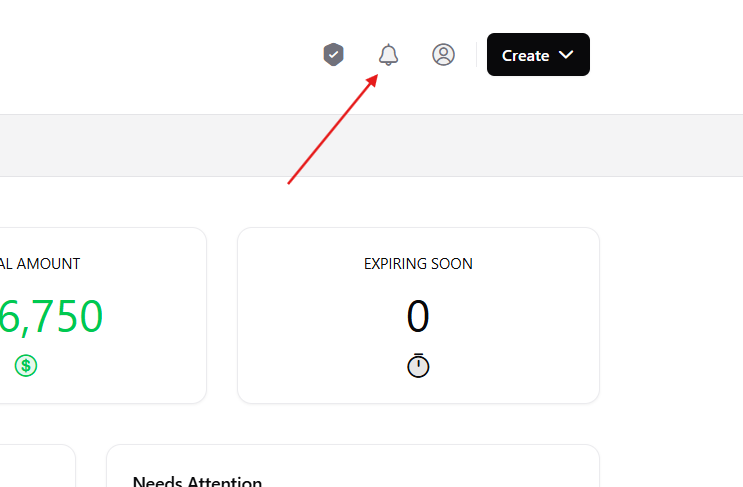
1 Open Notifications Panel
Click on the bell icon available in the top navigation bar.
This will open the Notifications Panel where you can view all notifications received from the CRM.
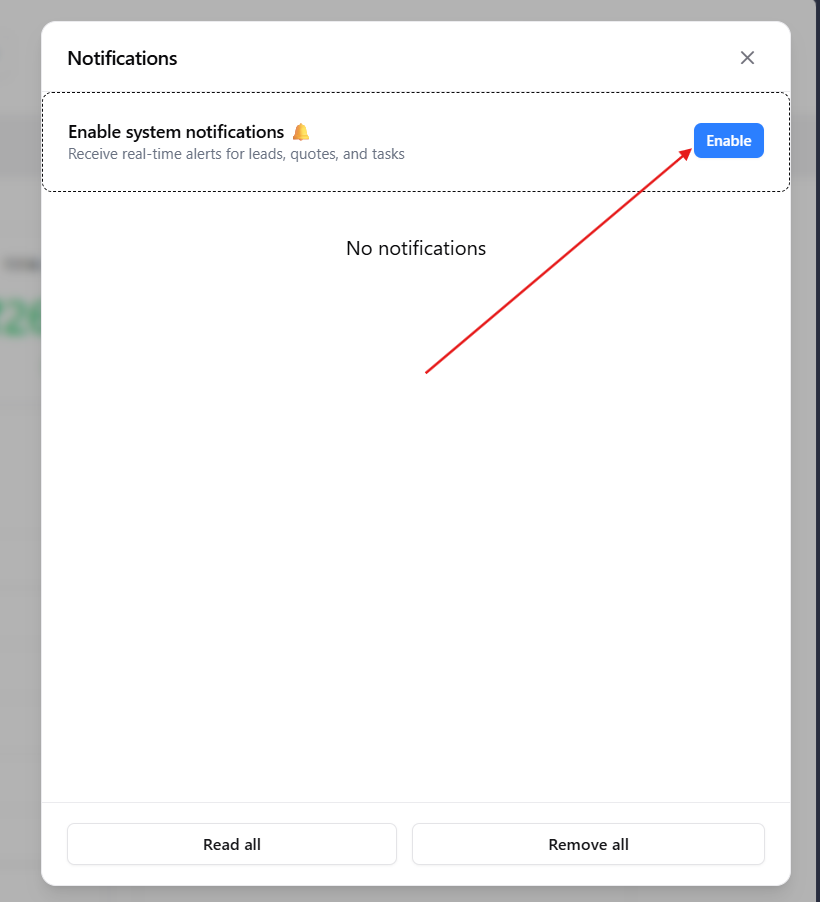
2 Enable System Notifications
If notifications are not enabled, you will see a message at the top of the Notifications Panel asking you to enable system notifications.
Click the Enable button to continue.
This step allows Pravyon to send notifications directly to your device whenever important events occur.
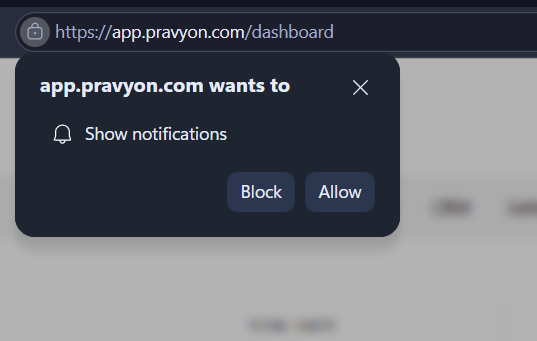
3 Allow Browser Permission
Your browser will display a permission popup asking whether Pravyon can show notifications.
Click Allow to grant permission.
This permission is required only once. After approval, Pravyon can send notifications whenever important updates are available.
What Happens After Enabling Notifications?
- Notifications appear instantly on your device.
- You can receive alerts even when another application is open.
- You do not need to keep the CRM page visible all the time.
- You can quickly respond to leads, tasks, and reminders.
- Important updates are less likely to be missed.
Common Notifications You May Receive
Benefits
- ✅ Stay updated in real time.
- ✅ Never miss important CRM activities.
- ✅ Respond to customers faster.
- ✅ Improve team communication.
- ✅ Get reminders without opening CRM repeatedly.
- ✅ Increase productivity and follow-up accuracy.
Related Documentation
Leave Management
Learn how to apply leave, track leave requests, review leave details, and manage your leave history using the Leave module.
WhatsApp Business Integration
Connect your WhatsApp Business account with Pravyon to send quotations, invoices, notifications, and customer updates directly from CRM.
IndiaMART Integration
Connect your IndiaMART account with Pravyon to automatically import inquiries and manage leads inside CRM.
Lead Notes and User Tagging
Add notes, reminders, and tag employees in lead notes. Tagged employees will receive dashboard and WhatsApp notifications.